
.webp "How to Bulk Import Products into Shopify: A Comprehensive Guide")
 eCommerce
How to Bulk Import Products into Shopify: A Comprehensive Guide

August 19, 2025
|


Content
Bulk importing products into Shopify is the process of uploading multiple product listings to an online store simultaneously using a single file, typically a CSV (Comma-Separated Values) file. This file contains all relevant information about each product, such as titles, descriptions, prices, inventory levels, and other attributes.
Bulk importing helps ecommerce enterprises efficiently add many products to their e-commerce platform without having to manually enter each item. This significantly saves time by uploading multiple products simultaneously, ensuring data accuracy and consistency. Additionally, it streamlines inventory management, preventing stock issues and enhancing customer satisfaction.
However, a lot of ecommerce businesses often encounter difficulties in managing and validating large volumes of data. This results in time-consuming troubleshooting and leads to potential revenue loss and inefficient operations due to inaccurate or incomplete product listings.
This blog delves into the necessary details of how to bulk import products into Shopify. It will help e-commerce businesses understand the Shopify product import process effectively.
Shopify Product Import CSV Template
When importing products into Shopify using a CSV (Comma-Separated Values) file, it's crucial to use Shopify's CSV template correctly. This is to ensure that product data is imported accurately into your Shopify store, maintaining consistency and minimizing errors during the import process. However, ecommerce businesses must adhere to Shopify's CSV template structure to ensure smooth and error-free imports. Here's a detailed explanation of Shopify's product import CSV template:
Shopify's CSV Template Structure: Key Details
Mandatory Fields
- Title: The name of the product.
- Body (HTML): Product description in HTML format.
- Vendor: The manufacturer or supplier of the product.
- Type: The categorization of the product (e.g., clothing, electronics).
- Tags: Keywords relevant to the product for organization and search.
- Published: Indicates if the product is published on the storefront (true/false).
- Option1 Name, Option1 Value: If the product has variants, these fields define the first option (e.g., Size: Small).
- Variant SKU: Stock Keeping Unit for each variant of the product.
- Variant Inventory Tracker: Shopify's default option is "Shopify," but other trackers can be used.
Optional Fields
- Handle: A URL-friendly version of the product name for SEO.
- Published at: The date and time of product publication.
- Option2 Name, Option2 Value: Additional options for variants, if applicable.
- Variant Inventory Qty: The quantity of each variant available for sale.
- Image Src: Product image URL.
- Image Position: The position of the image in the product gallery.
- Metafields Namespace and Key: Custom metadata for advanced product attributes.
- Google Shopping Metafields: Additional attributes for Google Shopping feed.
Peculiarities of Shopify's CSV Template
- Structured Format: Columns must be arranged precisely according to Shopify's specified order and format for each field.
- HTML Descriptions: The "Body (HTML)" field accepts HTML formatting for rich product descriptions, including text formatting, images, links, and more.
- Variant Handling: Shopify allows multiple product variants, requiring clear delineation in the CSV file using the "Option Name" and "Option Value" columns.
- Image Management: Images must be hosted online, and their URLs must be provided in the CSV for Shopify to fetch and display correctly.
- Metafields Support: Shopify's CSV template supports custom meta fields, allowing for additional product attributes beyond standard fields.
- Inventory Tracking: Specify the inventory tracking method for each product variant using the "Variant Inventory Tracker" field, which is crucial for managing stock levels accurately.
How to Bulk Import Products Into Shopify: A Step-by-Step Guide
Here are the best ways to successfully bulk import products into Shopify:
1. Preparing Your Data
Before initiating the process of how to bulk import products into Shopify, thorough preparation of your data is essential for a seamless experience.
Understand Your Data Requirements
- Data Fields: Identify and gather all necessary information for your products, such as titles, descriptions, prices, SKUs, variants, and inventory quantities.
- Optional Fields: To enhance organization and SEO, consider optional data fields like tags, categories, and vendor details.
- Data Consistency: Ensure uniformity in data formatting (e.g., currency, measurements) to prevent errors during the import process.
Format Your Data Correctly
- CSV Structure: Familiarize yourself with Shopify's CSV template structure, which specifies mandatory and optional fields. This understanding will help you organize your data correctly.
- Common Formatting Issues: Avoid pitfalls like special characters, incorrect use of commas or quotation marks, and inconsistent data formats that can lead to import errors.
2. Creating Your CSV File
Creating a CSV file with proper format is the next critical step in how to bulk import products into Shopify process.
Use Spreadsheet Software
- Tools Available: To create and manage your CSV file, use tools like Excel or Google Sheets. These platforms offer robust features for data organization and validation.
- Step-by-Step Guide: Follow a systematic approach to setting up your spreadsheet, including defining columns for each data field to ensure clarity and accuracy.
Populating Your CSV File
- Enter Product Details: Input product information meticulously, ensuring each field corresponds accurately to Shopify's requirements.
- Manage Variants and Options: If applicable, include variants such as sizes, colors, and other options, ensuring they are properly structured within the CSV.
Validating Your CSV File
- Check Errors: Before proceeding to import, validate your CSV file thoroughly to detect and correct any formatting or data entry errors.
- Use Validation Tools: Use built-in spreadsheet validation features and third-party tools if necessary to ensure data integrity and accuracy.

3. Importing Your CSV File Into Shopify
After preparing and validating your CSV file, it is time to execute the import process.
Accessing the Import Function
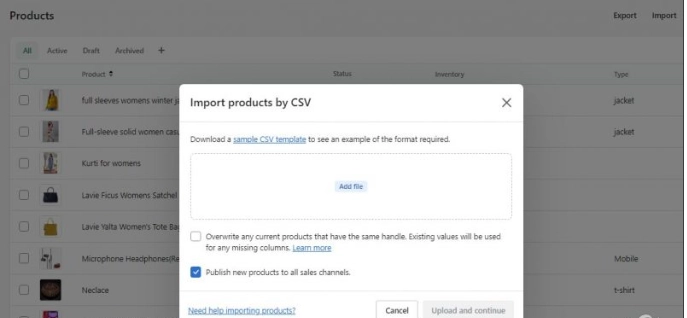
- Navigate Shopify Interface: Locate and access the product import functionality within your Shopify admin dashboard.
- Understand Import Options: Familiarize yourself with the available import settings and options to configure the process according to your needs.
Uploading Your CSV File
- Follow Step-by-Step Process: Follow Shopify's prompts to select and upload your CSV file. Configure import settings such as delimiter type and field mapping.
- Monitor the Upload: Monitor the import progress to ensure all data is processed correctly and efficiently.
Handling Import Errors
- Address Common Issues: Be prepared to address common import errors such as formatting discrepancies or missing data fields.
- Troubleshoot Issues: Utilize Shopify's error reporting and support resources to troubleshoot and resolve any issues promptly.
4. Post-Import Actions
Completing the import process is just the beginning. Post-import actions are crucial for optimizing and maintaining your product listings in Shopify.
Verifying Imported Products
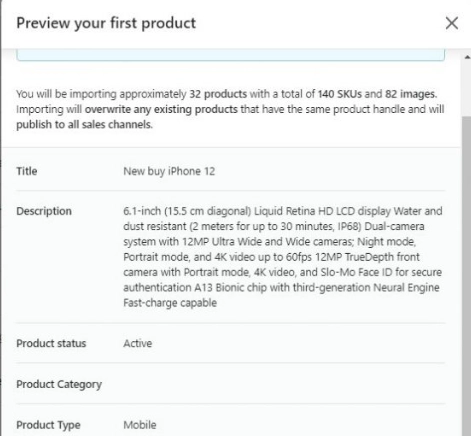
- Check Accuracy: Review imported product listings to verify data accuracy and completeness.
- Adjust Inventory: Confirm inventory levels and make adjustments as necessary to reflect current stock availability.
Optimizing Product Listings
- Enhance Descriptions and Images: Improve product descriptions and upload high-quality images to enhance visual appeal and SEO.
- Optimize for SEO: Optimize product titles, descriptions, and tags with appropriate keywords to improve search engine visibility.
Managing Your Inventory
- Utilize Tools: Explore Shopify's inventory management tools and apps to streamline ongoing inventory control and updates.
- Follow Best Practices: Implement best practices for maintaining accurate inventory records and responding to changes in demand effectively.
Conclusion
The success of a Shopify ecommerce store is not only dependent on product offerings but also on effective and accurate product presentation. Each bulk product import thrives on clarity and conciseness yet comprehensive descriptions that resonate with the audience. However, many ecommerce businesses lack a strong understanding of mapping product attributes and troubleshooting common import errors, etc. Such technical intricacies often necessitate specialized skills and experience, which is possible by delegating these services to third-party partners.
At Invensis, we assist businesses in efficiently managing bulk product imports into Shopify through comprehensive Shopify product data entry services. We have a team of professionals proficient in handling CSV file formatting, data validation, and product attribute mapping. This expertise ensures that each product listing is meticulously prepared and uploaded, minimizing errors and optimizing the import process for efficiency. Also, with in-depth knowledge of Shopify's CSV template and import functionalities, we help ecommerce businesses navigate complex data structures adeptly. Our experts manage various aspects, such as product descriptions, pricing details, inventory levels, and variant options. Contact us now to learn how we bulk import products into Shopify with our expert support and drive growth in the e-commerce marketplace.
FAQs
.webp "Medium")
Jennie is a popular writer in the ecommerce field, bringing extensive knowledge and her on-ground expertise to her writing. With years of experience working for some of the world's leading ecommerce businesses, she has the perfect compass to guide emerging companies through the ever-changing online business landscape. She excels in product optimization, conversion rate optimization, and customer experience enhancement. As a prominent writer in the ecommerce space, Jennie delivers concise and actionable guidance, empowering businesses to thrive in the digital marketplace.
Discover Our Full Range of Services
Click HereExplore the Industries We Serve
Click HereBlog Category
Related Articles

How quickly they turn invoices into cash, we break down what really happens inside the invoice validation clock
June 25, 2026
|

A practical guide for factors to identify invoice fraud, strengthen invoice validation, and protect funding decisions.
June 25, 2026
|
.jpeg)
How modern factoring support services empower factoring companies to scale, manage risk, and protect margins amid tightening credit conditions.
June 25, 2026
|
Services We Provide
Industries We Serve
